
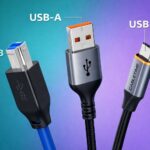
Ever looked at the back of your PC or the side of your laptop and noticed blue, black, or even yellow USB ports? It may look like a random design, but those colours quietly tell you how fast that port is, how much power it can give, and what kind of devices it is best suited for. In simple terms, USB port colours are meant to hint at speed and power features, especially for the older, rectangular USB-A ports. Newer USB-C ports work a little differently and rely more on symbols than colours. Knowing the difference can save you from slow file transfers and painfully slow charging. What is a USB port, really? USB, short for Universal Serial Bus, is the standard way devices connect to computers for both data and power. Whether it is a keyboard, phone, camera or hard drive, USB lets them communicate and draw electricity from the same cable. Today, most devices use either USB-A, the classic rectangular port, or USB-C, the smaller reversible one that you can plug in either way. USB-B, which was common on printers, is now largely outdated and rarely seen on new consumer devices. What do USB-A port colours mean? On USB-A ports, the plastic inside the port is often colour-coded. While not every company follows the same system strictly, the colours usually point to the USB version and its speed.
1. White ports belong to very old USB 1.x standards. They are slow by modern standards and are mostly found on older machines. They work fine for basic devices like keyboards or mice but are not meant for charging or transferring files. 2. Black ports usually indicate USB 2.0. These are still very common and good enough for everyday accessories such as printers, webcams, and basic flash drives. They also charge phones, but slowly. 3. Blue ports mark USB 3.0, also called SuperSpeed USB. These are much faster and are ideal for external hard drives, SSDs, and large file transfers. If you are copying videos or backups, blue is the port you should look for. 4. Red ports are typically newer USB 3.1 or USB 3.2 versions. Apart from being very fast, they are often “Always On,” meaning they can supply power even when your computer is shut down. They are useful for fast external storage and for charging devices at any time. 5. Yellow and orange ports are mostly focused on power. They usually stay active even when the PC is off and are meant for charging phones, wireless earbuds or power banks. Data speed can vary, but their main job is reliable power delivery. One important thing to remember: Colour is a helpful hint, not a guarantee. Different manufacturers may use colours differently, so it is always good to double-check using the symbols next to the port.
Also read: Finland’s researchers successfully transmitted electricity through the air
Pro tip for identification If you are confused between two ports, always trust the symbol over the colour. The logo tells you the actual capability of the port. Why USB-C is more confusing than USB-A Unlike USB-A, USB-C ports usually do not use colours at all. Most of them look identical, but their abilities can be very different. One USB-C port may only support basic data, while another may handle charging, monitors, and ultra-fast data at the same time. This is why icons are extremely important for USB-C. Without checking the symbol or the laptop’s specifications, it is impossible to tell what that port can really do just by looking at it. Some manufacturers also use coloured tips inside cables to suggest fast charging or higher speeds, but there is no universal rule for this.
Also read: Giving your phone for repair to service centre? Your photos, chats, and financial details can be at risk
So which port should you use? If you are connecting simple accessories like a mouse, keyboard, or printer, black USB-A ports are perfectly fine. For external storage and fast file transfers, blue or red ports are the better choice. For charging devices, especially when the PC is off, yellow or red ports are more reliable. For USB-C, always look for the symbol. If you are using a monitor, docking station or fast SSD, make sure the port supports DisplayPort or Thunderbolt, not just basic USB. USB ports may look simple, but they quietly tell you a lot through colour and symbols.
So the next time you are plugging something in, take one extra second to check the port. Your files will transfer faster, your devices will charge better, and your tech life will be a lot less frustrating
The post appeared first on .